 Maxime CASIER
 How do I activate or deactivate a SOLIDWORKS license?
Find out how to activate or deactivate a SOLIDWORKS license.
Maxime CASIER 
- Blocked services or processes
- Corrupt temporary files
- Network problems
- Incorrect login
- Maintenance of Dassault servers
- 3DEXPERIENCE Launcher malfunction
Processes related to SolidWorks or 3DEXPERIENCE remain active in the background
Solution: Close blocking processes
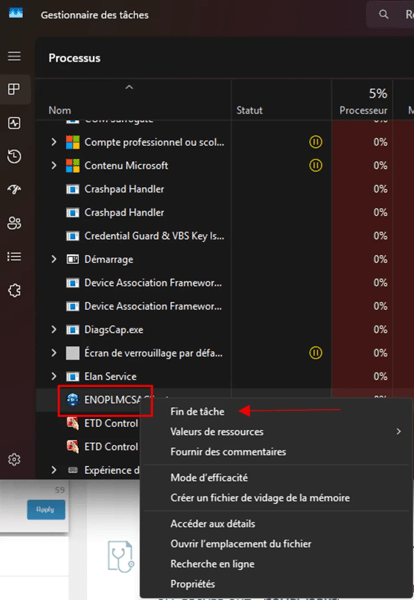
Open the Task Manager and terminate these processes if present:
- SolidWorks
- SolidWorks_fs
- SolidWorks Resource Monitor
- Connector for SolidWorks
- ENOPLMCSAClient
- CEF Sub Process
- WebView2 Manager
Cache or temporary files preventing connection
Solution: Delete temporary files
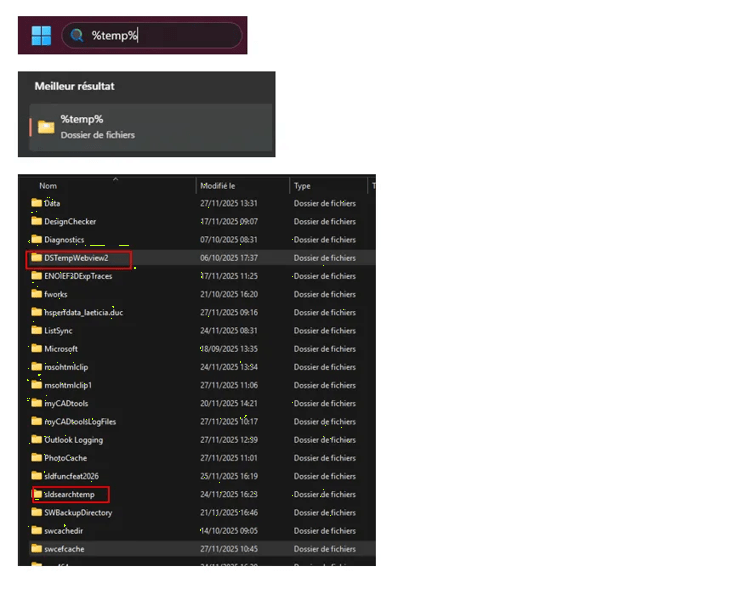
Open the search bar, then type: %temp% in the search bar
And delete :
- DSTempWebview2
- Swcefcache
- %localappdata%\DassaultSystemes\CATTemp (rename to .old)
- %appdata%\DassaultSystemes\CATSettings (rename to .old)
VPN, proxy, firewall or ports blocked
Solution: Check your network connection
Test your bandwidth (min. 4Mbps, latency < 350 ms). Disable VPN, proxy or adjust firewall to allow Dassault Systèmes ports.
Use the Cloud Eligibility Checker tool to validate your workstation configuration.
Migration to 3DEXPERIENCE ID (old SOLIDWORKS ID not recognized)
Solution: Relaunch from the platform
- Clear your browser cache
- Connect via the 3DEXPERIENCE link, then log in
- Launch Design with SOLIDWORKS or SOLIDWORKS Connected from Compass
The Launcher is essential for launching SolidWorks from the platform, but it can cause problems (installation loop, white page, connection failure). Here are the most common causes of Launcher blocking:
- Browser blocking: Chrome (v142+) introduces a "Local Network Access" security feature that prevents the Launcher from communicating with your PC.
- PLM services not stopped: 3DEXPERIENCE processes remain active in the background.
- Corrupted cache: Temporary files or local settings.
- Firewall / Proxy / VPN: Blocking Dassault ports or domains.
- Incomplete installation: Launcher incorrectly installed or not updated.
Solutions : Enable Local Network Access (Chrome)
- In Chrome, go to your platform (e.g. eu1-ifwe.3dexperience.3ds.com).
- Click to the left of the URL → Allow Local Network Access.
- Refresh the page. (If Chrome is managed by IT, ask for rights or use Edge/Firefox)
Restart and close services
- Quit SOLIDWORKS and the Launcher. In Task Manager, complete :
- ENOPLMCSAClient,
- Connector for SOLIDWORKS,
- CEF Sub Process,
- WebView2 Manager.
- Restart PC to restart clean services.
Delete caches
Delete :
- %temp%\swcefcache
- %localappdata%\DassaultSystemes\CATTemp
-%appdata%\DassaultSystemes\CATSettings (rename to .old).
Restart from the platform
- Connect via eu1-ifwe.3dexperience.3ds.com.
- Launch SOLIDWORKS Connected or Design with SOLIDWORKS from the compass.
Check network
Authorize ports :
- 443 (HTTPS): Main communication and WebSocket.
- 80 (HTTP): Occasional redirections.
- SSL/TLS mandatory: All connections are secure.
- Disable VPN or proxy
- Test with Cloud Eligibility Checker.
Authorize the following domains and subdomains:
- *.3dexperience.3ds.com
- *.3ds.com
- passport.3ds.com
- eu1-ifwe.3dexperience.3ds.com
- 3dspace.3ds.com
- swconnector.3ds.com
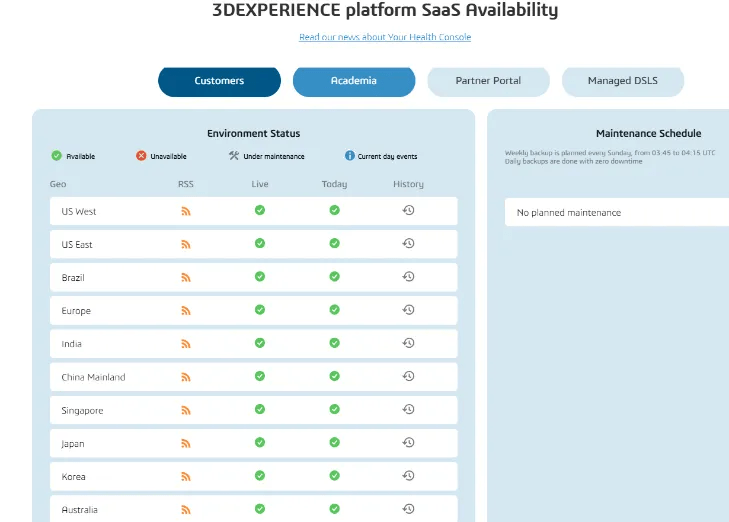
To check whether Dassault Systèmes servers are under maintenance or experiencing problems, you can access the Dassault Systèmes Health Console with your 3DEXPERIENCE login.
Access the Dassault Systèmes website for real-time information
 Maxime CASIER Maxime CASIER Maxime CASIER