 Maxime CASIER
 How to borrow a SOLIDWORKS licence
Learn how to borrow and return a SOLIDWORKS licence using the Solidnetwork License Manager Client, with practical tips to avoid common mistakes.
 Roman Fradin
I. What is cold storage in PDM?
You can create a cold storage scheme in a vault to automatically move or delete older versions of files from vault archives. You can choose to define a scheme for all files in the vault or only for files located in specific folders.
A scheme can specify that project folders should contain only the most recent versions of a file and that older versions should be deleted from the archive. After deletion, a version history is retained.
The Restore option in the Get Version menu of the SOLIDWORKS PDM File Explorer allows you to restore files from cold storage. However, if cold storage has been used to delete a version of a file, it cannot be restored to the archive server.
When a vault is replicated, each replicated server processes cold storage separately. If you want to store older files in cold storage on replicated servers, you must create a cold storage scheme for each server.
To ensure the cold storage scheme takes effect immediately, stop and restart the archive server service.
II. Creating a cold storage scheme
To create a cold storage scheme, go to the PDM Administration tool.
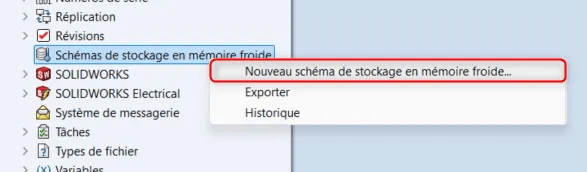
In the left panel of the administration tool, right-click on Cold Storage Schemes and select New Cold Storage Scheme.
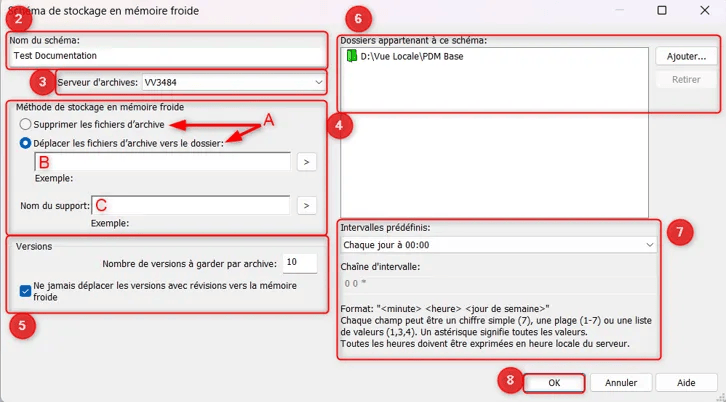
In the dialog box, enter a Scheme name.
Select the archive server on which to run the scheme. If the vault is replicated across multiple archive servers, they are listed.
Under Cold storage method, choose to delete or move older versions of file archives:
Delete archive files
: deletes the files from the vault and records the deletion in the vault history.
⚠️ Deletion is irreversible. Make sure to back up the archive before deleting it.
Move archive files to folder: moves older versions of files out of the archive.
Enter a folder name by combining path components, such as c:\ColdStorage and the variable components
available when you click >. For example:
c:\ColdStorage\Year (2) Month (2) Counter-04
When the scheme is triggered, the specified folder path is used.
Enter a media name: this is a sub-directory in which to move cold storage occurrences. Use the path and variable components available by clicking >.
Use Counter variables to ensure uniqueness.
When the scheme is triggered, a folder with the media name is created at the specified location. The media name is included in the file history.
Under Versions, select the number of versions to keep on the server for each archive. For example, enter 5
to keep the last 5 versions of a file and discard or move older versions. You can also choose to
move versions with revisions to cold storage.
Select the folders for the cold storage scheme. Sub-folders are always processed so you do not need to select them. By default, the entire vault is selected. Use the Add and Remove buttons to specify folders.
Configure the schedule by either selecting an interval from the Preset intervaloption or selecting
User-defined schedule. To specify a user-defined schedule, enter a value in the
Interval string field. The schedule has the format: Minute Hour Day of week where:
Separate sections with a space. Sections can contain a single number, a range of numbers (1-7) or a list (0,15,30,45). The full range is represented by an asterisk.
For example:
Click OK to save the scheme.
Stop and restart the archive server service:
In the Control Panel, click System and Security > Administrative Tools > Services.
In the Services dialog box, right-click SOLIDWORKS PDM Archive Serverand click Stop.
Right-click SOLIDWORKS PDM Archive Server again, then click Start.
Maxime CASIER Maxime CASIER Maxime CASIER