myCADacademy
The innovative online training platform that enables design office professionals to develop their skills at their own pace.
 Roman Fradin
I. Introduction
In SOLIDWORKS PDM, it may happen that certain column sets disappear or that the data displayed in the columns is inverted.
When this issue occurs, it is necessary to reset the column sets on the client workstation.
This guide provides a step-by-step procedure for resolving this type of malfunction using the SOLIDWORKS PDM administration tool, the registry editor, and File Explorer options.
The following sections describe the steps to follow to reset an incorrect column set in the PDM local view.
II. Resetting an incorrect column set in the PDM local view
1. Access the PDM administration tool
To begin, access the PDM administration tool, then navigate to the Columns → File list columns tab.
Then select the column set experiencing the issue.
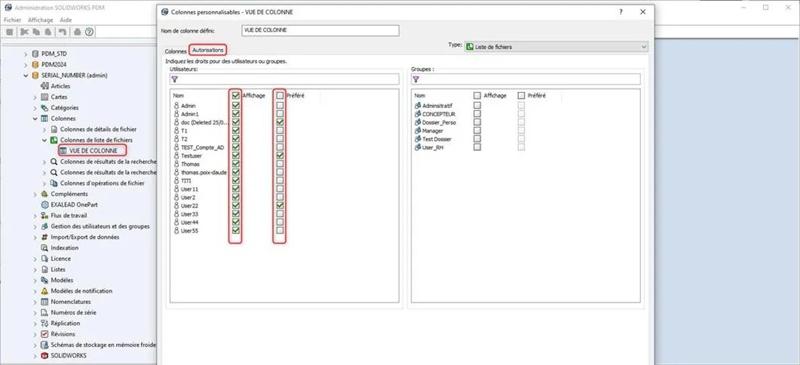
2. Set permissions by user
It is strongly recommended to set permissions by user rather than by group.
Indeed, if a user belongs to multiple groups, a conflict may arise, which is likely to generate the error again.
The issue may also appear if a change to the column view was made while permissions are set by group.
3. Close PDM applications
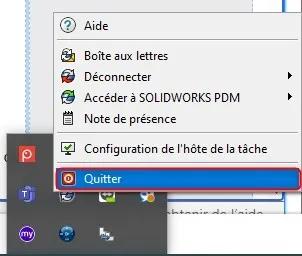
Next, close all PDM instances via the blue icon in the taskbar at the bottom right of the screen (notification area).
Make sure no PDM process remains active before continuing.
4. Delete the registry key
Access the registry editor (preferably as an administrator, especially if the vault was created with administrator rights).
Then navigate to the following key to delete it:
Computer\HKEY_CURRENT_USER\SOFTWARE\SolidWorks\Applications\PDMWorks Enterprise\CTDMListView\ColumnSet
Once the key has been deleted, it is essential to restart File Explorer from the Task Manager.
5. Open the PDM local view in File Explorer
You can now return to your PDM local view.
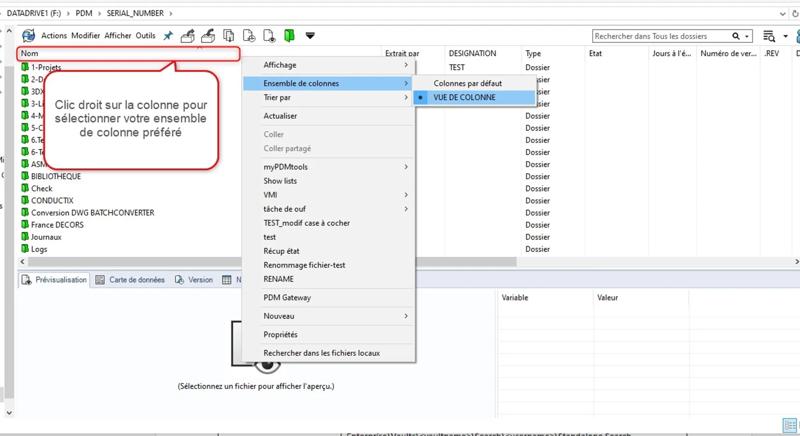
Navigate to the root of your vault in File Explorer, then select the desired column set via a right-click.
6. Apply the configuration to child folders (Windows 10)
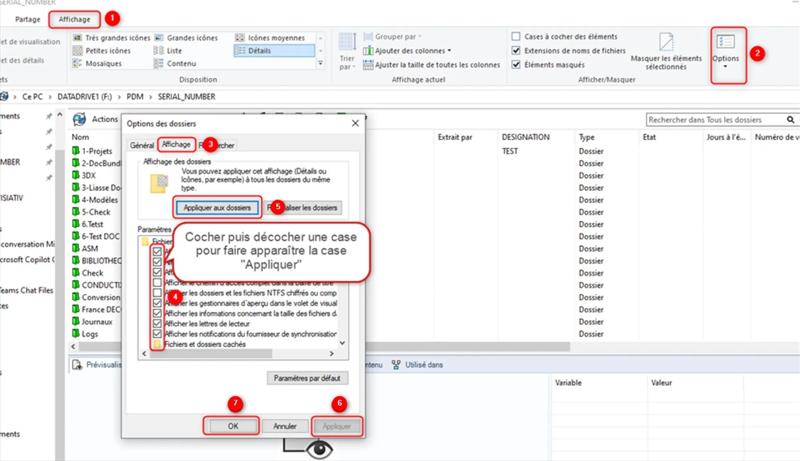
In Windows File Explorer options, it is essential to apply this column set configuration to all sub-folders of your PDM vault.
This will ensure that the defined column set and the desired display style are preserved as you navigate through the architecture of your local view.
To do this, follow the steps shown in the screenshot below:
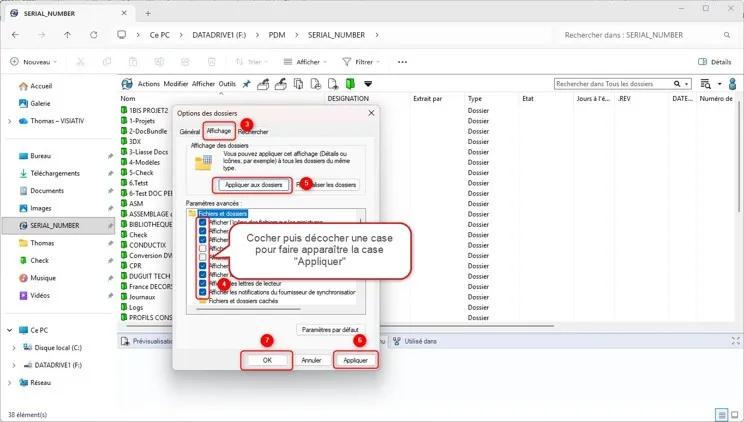
7. Apply the configuration to child folders (Windows 11)
In Windows File Explorer options, it is essential to apply this column set configuration to all sub-folders of your PDM vault.
This will ensure that the defined column set and the desired display style are preserved as you navigate through the architecture of your local view.
To do this, follow the steps shown in the screenshot below:


III. Conclusion
By following this procedure, you can resolve issues related to an incorrect column set in the PDM local view and restore a normal display of information.
If the issue persists, please contact the technical support of your reseller.
 Maxime CASIER Maxime CASIER