Roman Fradin
 How to get an older file version in SOLIDWORKS PDM

1. Getting a version from the history dialog box
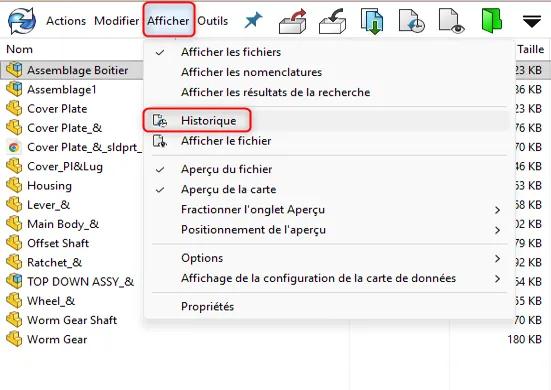
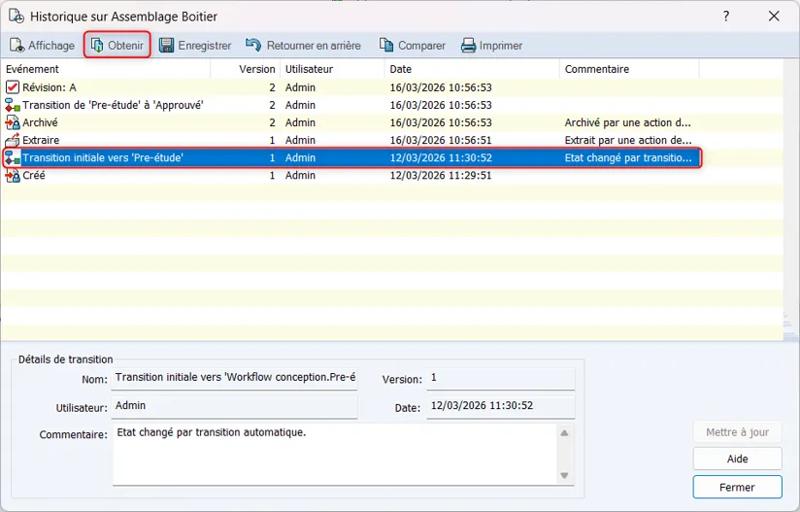
You can change the version of a file that you retrieve to your local cache while viewing its history.
2. Via right-click on the file
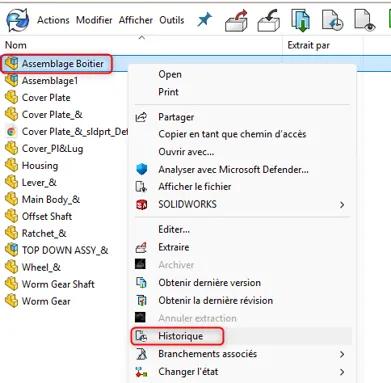
The second method consists of right-clicking on the file to display the context menu, then selecting Get Version.
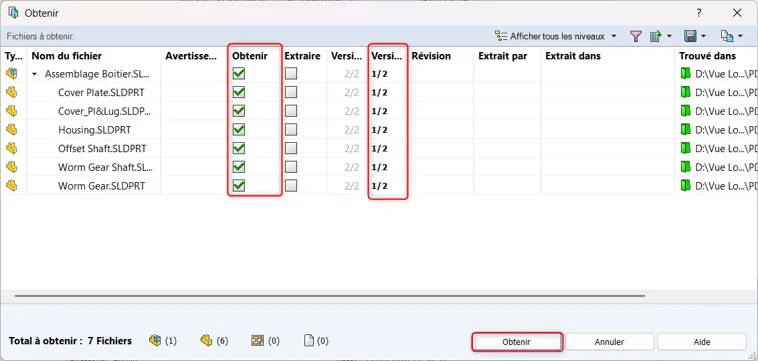
You will then see a clock icon with a red counter-clockwise arrow in the file's Version tab, indicating that the version displayed is not the most recent one.
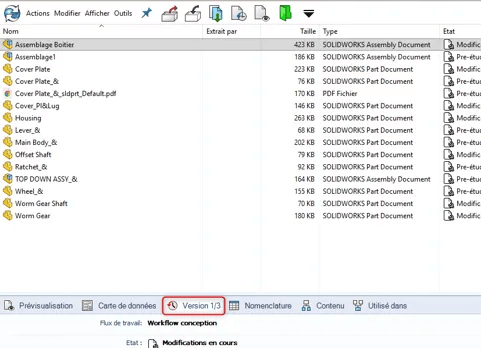
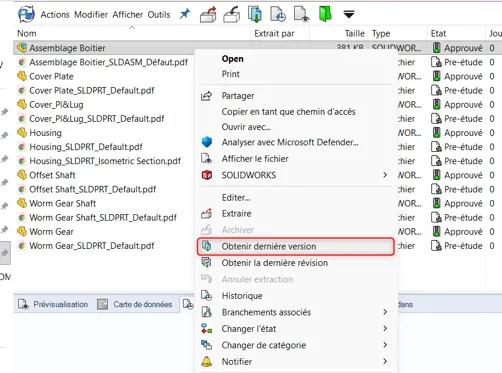
To return to the most recent version, you can either follow the same process but select the latest version, or right-click on the file and select Get Version.
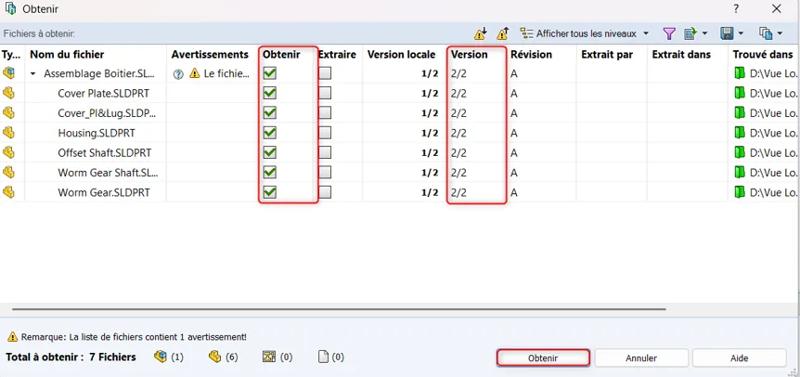
A new window will then open indicating the file and the latest version that will be retrieved.
3. Setting that prevents retrieving older versions
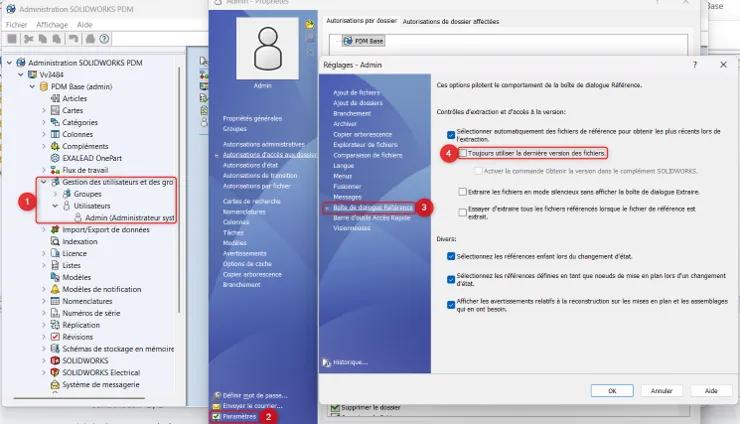
⚠️ Warning: the option "Always use the latest version of referenced files" may prevent you from retrieving older versions. If this option is enabled in the settings, SOLIDWORKS PDM will ignore your selection and automatically retrieve the most recent version.