 Maxime CASIER
 SOLIDWORKS configuration management in 3DEXPERIENCE
Find out how to manage SOLIDWORKS configurations in the 3DEXPERIENCE platform.
 Roman Fradin
I. Problem description
Problem encountered
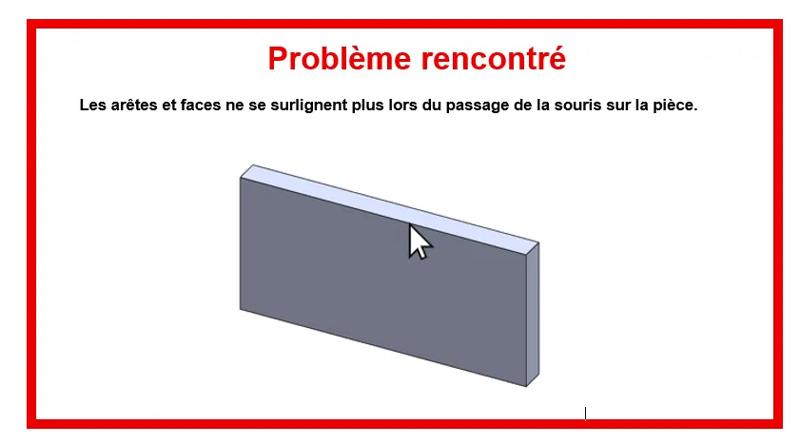
Edges and faces no longer highlight when hovering the mouse over the part.
Expected result
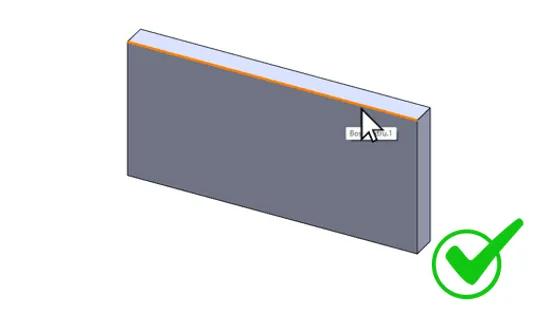
Edges and faces automatically appear in orange when the cursor moves over them.


III. Enabling dynamic highlight
Go to Tools then Options.
Open the Display menu in the system options.
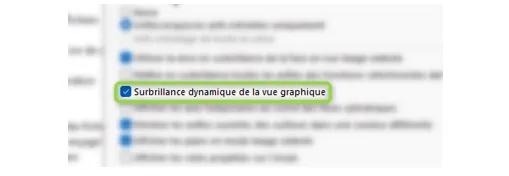
Check Dynamic highlight from graphics view.
Click OK to confirm.


IV. Checking the result
Edges and faces now automatically highlight in orange when the mouse hovers over them.
V. Conclusion
Dynamic highlight improves the visibility and selection of elements in SOLIDWORKS. After enabling the option, edges and faces correctly turn orange when the mouse hovers over them, confirming that the feature is working properly.
Maxime CASIER