Smart Property: Reliable CAD Data Entry in SolidWorks
Smart Property guides SolidWorks property entry with conditional forms and mandatory fields. The result: fewer errors and consistent data across all users.
May 26, 2026
 Roman Fradin
CAD data quality does not depend on the software — it depends on what users actually enter. At Netco Système, Smart Property is what structures that input: a conditional form that guides the designer, limits errors, and automatically feeds every downstream document.
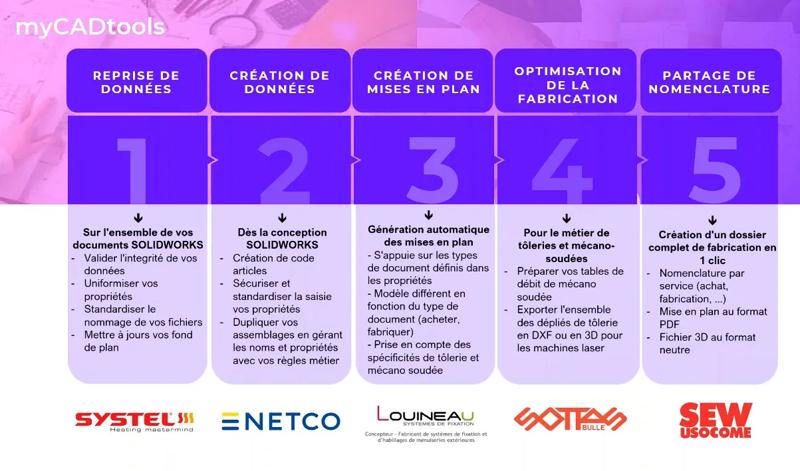
Smart Property displays an entry form whose fields evolve based on the choices made. Three levels of properties are distinguished:
Part properties — name, item code, manufacturing process
Body properties — material, thickness, sheet metal or welded assembly specifics
Assembly properties — information specific to the overall assembly
At each level, the form changes. A sheet metal body does not call for the same fields as a welded profile. This conditional logic avoids displaying irrelevant fields and reduces cognitive load for the designer.
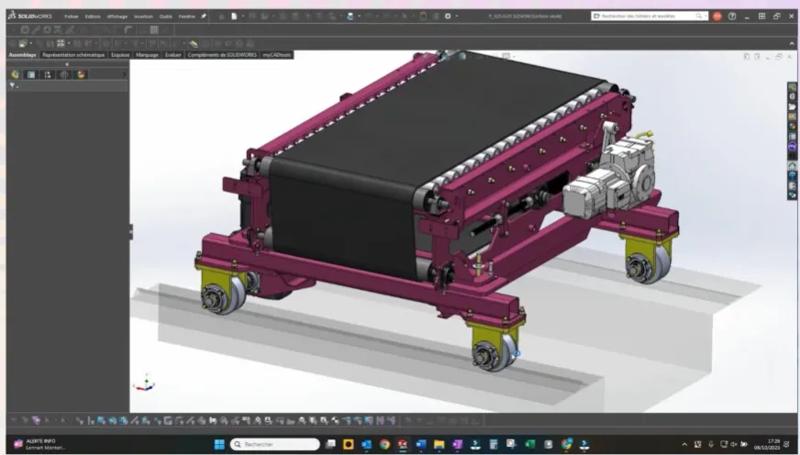
The core principle of Smart Property is to minimise manual input while maximising the information stored in files. This relies on two mechanisms:
Conditional formulas — based on certain properties already filled in, others are calculated or completed automatically. For example, a sheet metal material or thickness can automatically trigger the population of related manufacturing process properties.
Locked dropdown menus — designers do not type freely: they select from a predefined list. Certain fields can also be made mandatory, preventing the form from being validated if a critical property is missing.
The result: the operator fills in the essentials — primarily the part name and the manufacturing process — and Smart Property handles the rest.
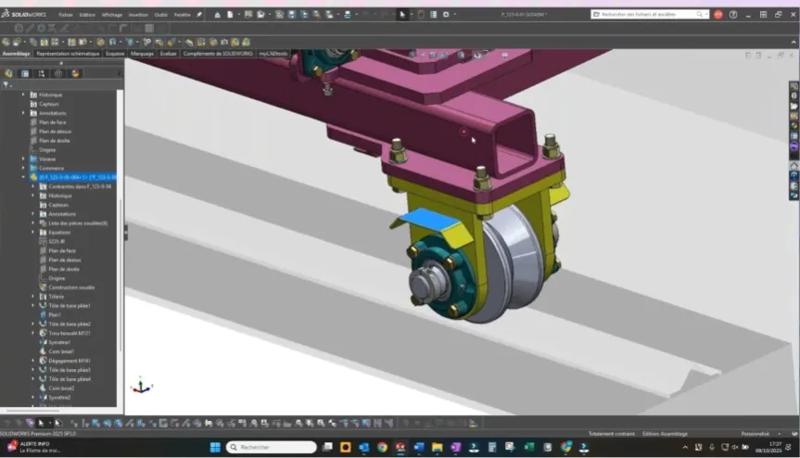
Without a shared framework, practices diverge between users: forgotten properties, inconsistent part names, empty fields. These gaps, seemingly minor, create inconsistencies that cascade through the entire chain — bills of materials, manufacturing folders, client documentation.
Smart Property acts as a safeguard. It does not replace SolidWorks' native property panel, but where that panel leaves users free to enter anything — or nothing — Smart Property enforces logic, rules, and checks.
Smart Property is the starting point for the entire myCADtools chain at Netco Système. If the data entered is reliable, everything that follows — bills of materials, manufacturing folders, exports — is reliable too. If it is not, the snowball effect described in the first article begins to roll.
In the next article, we will look at how Smart BOM uses these properties to generate filtered bills of materials tailored to each department.
This article is based on the webinar "How Netco Système improves the reliability of its technical data with myCADtools", organised by Visatif with Michel Tonoli, head of engineering at Netco Système.